md² documentation
List view
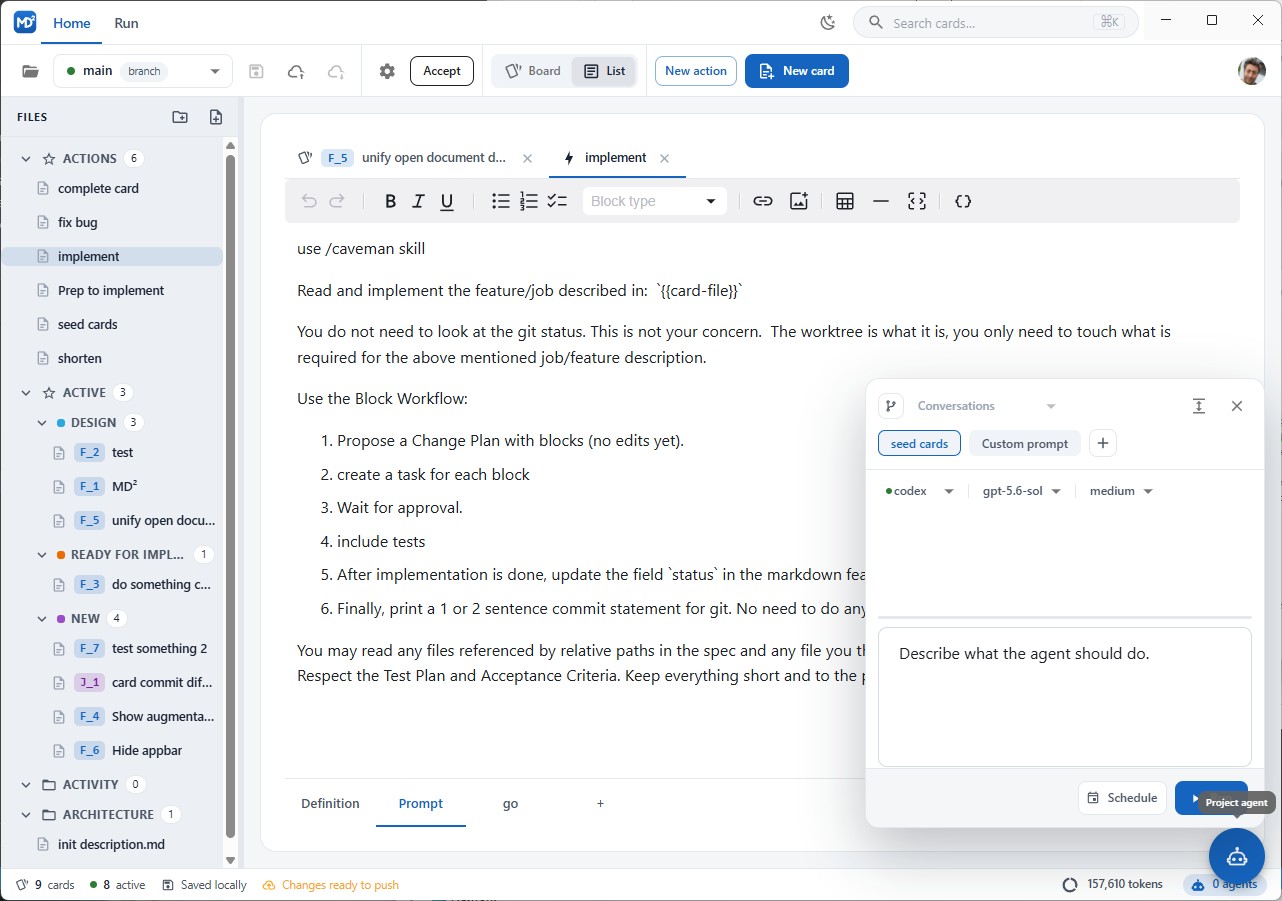
List view is the tree-plus-tabs half of md². Switch to it with the List toggle in the application menu.
Tree
The left panel shows the project as folders:
- ACTIONS — the action definitions, one entry per JSON file;
- ACTIVE — the working folder, grouped by state, with the cards inside;
- ACTIVITY — conversation and run logs;
- your own folders, such as architecture notes.
Clicking a file opens it in a tab. The toolbar above the tree adds folders and Markdown files; the same commands sit in the tree context menu, together with the actions whose appliesTo matches a folder or file.
On mobile the tree moves into the hamburger menu.
Tabs
Open files appear as tabs, with an icon showing what each one is: card, plain Markdown file, or action. Selecting a file that is already open activates its tab instead of opening a second one.
Each tab has:
- a properties box at the top — the card header fields, or the action definition fields;
- the Markdown editor below it, with a formatting toolbar (bold, italic, lists, links, images, tables, code blocks).
Undo history is kept per document, so switching tabs does not throw it away.
Editing actions
Action tabs use the same layout, with structured controls instead of raw JSON. Agent actions get a Markdown editor for the prompt, with {{ typeahead for placeholders; command actions edit their command line as a field. Sub-tabs at the bottom switch between Definition, Prompt, and any phrases the action defines.
Invalid values are shown in place with the actual error and are not written to disk.
Conversation panel
The Agents button on the editor toolbar opens the conversation panel next to the document. It shows the run history for that card or file, streams live agent output, and takes your next turn. On desktop a splitter resizes it; on mobile it has a fixed layout.
Properties
The Properties button opens the card header fields — status, owner, policies, affects, worktree — without leaving the editor.
See also: Board view, Action definition, Running actions.