md² documentation
Remote control
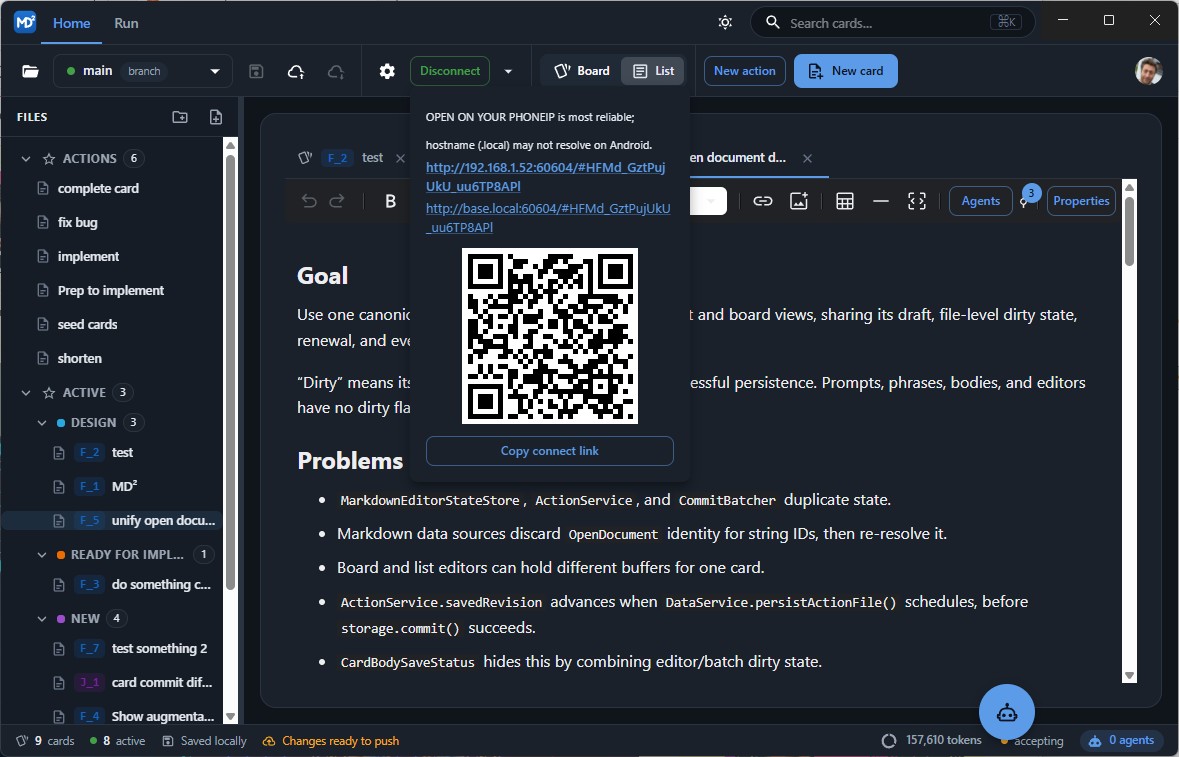
Remote control lets a phone, tablet, or another computer drive the md² instance running on your desktop. The remote browser is a full client: same project, same files, same actions — executed on the desktop machine.
Connecting
- On the desktop, press the remote-control button in the menu (it switches to Disconnect once running).
- Open the connect popover next to it. It shows a QR code, an IP-based link, and a hostname link (
http://<hostname>.local:<port>/#<token>), plus Copy connect link. - Scan the QR code or open the link on the other device.
The desktop serves the md² web build from the same port, so the phone loads the app from your machine — no separate install and no cloud. The page reads the token from the URL fragment and connects back over the WebSocket automatically.
Prefer the IP link. The .local hostname does not resolve on every device, Android in particular.
To connect an md² web instance manually instead: Open project → source Remote → endpoint, token, project root path, branch.
What the remote client can do
Everything the desktop can, including running actions and agents, because the desktop process executes them. Card edits, commits, and worktree operations all happen on the desktop machine’s files.
Security
The server binds to the LAN (0.0.0.0), not just loopback, otherwise other devices could not reach it. Consequences worth knowing:
- Traffic is plain HTTP and WebSocket, unencrypted. It is meant for your own network, not a café.
- A token is generated for every session and is mandatory for non-loopback connections. Anyone with the link has the token — treat it like a password and do not paste it into chat.
- Static file serving rejects path traversal and does not list directories.
- Stopping remote control ends the session; a new session gets a new token.
Because the page is served over plain HTTP, browsers withhold some secure-context APIs (async clipboard, service workers). md² falls back where it can.
See also: Storage modes.